

 2026-06-01T05:10:10.000Z
PDF has become the standard format for sharing reports, proposals, and presentations across the world. They preserve formatting, take up little memory, and can be viewed on any device. But what happens when you need to repurpose the content of a PDF into a slide deck? You cannot simply copy and paste — each slide needs to be rebuilt from scratch, which is time-consuming and frustrating.
Instead of manually recreating slides, you can use specialized tools to transform your PDF into an editable PowerPoint presentation in minutes. In this article, we will show you 5 different ways to convert PDF to PowerPoint quickly and efficiently - from AI-powered platforms to trusted free online converters, with step-by-step instructions to save you hours of work.
Part 1. AIGPTS PDF Converter — The Most Versatile All-in-One Tool
When you receive a PDF that you want to turn into a presentation, you might think the only option is to manually recreate every slide. But there is a much easier way — using a PDF converter you trust to transform the read-only PDF into an editable PowerPoint file, and then customize the slides to fit your needs.
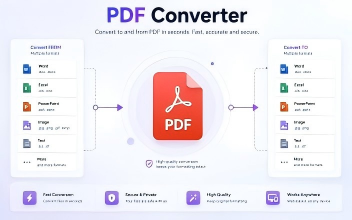
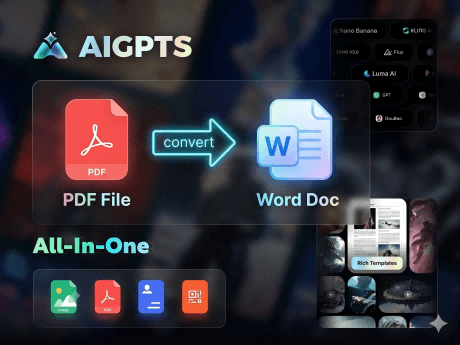
AIGPTS PDF Converter is a powerful all-in-one AI platform that includes a comprehensive PDF Tools suite. Beyond converting PDF to PPT, it also support multiple formats, like .doc, .docx, .xls, PNG, JPG... Just one click, effortlessly convert PDF to Word, Excel, PNG, etc.

Here are the steps to quickly convert a PDF to a PowerPoint presentation with AIGPTS PDF Converter:
Step 1: Import your PDF file
Open your browser and navigate to AIGPTS PDF Converter. Click the "Upload" button to import the PDF file you want to convert, or simply drag and drop the PDF file directly into the designated area on the page.
Step 2: Convert PDF to PowerPoint
After the PDF file has been successfully imported, for PDF to PPT conversion, select PowerPoint (PPT/PPTX) as the output format. Then, click the "Convert" button to start the conversion of PDF to PPT.
Step 3: Save the converted PowerPoint file
Once the conversion is complete, click the download button to save the converted PowerPoint.
Why choose AIGPTS PDF Converter?
· Convert PDF to PowerPoint (PPTX) with one click
· Built-in OCR for converting scanned PDFs to editable presentations
· Batch processing — convert multiple PDF files at once
· Privacy-first: files are auto-deleted after processing
· All popular file formats supported: PDF, DOC, DOCX, PPT, PPTX, XLSX, and more
· 20+ additional PDF tools including merge, split, watermark, and sign
In addition to converting PDF to PPT, AIGPTS also provides online free PDF editing functions: merge multiple PDFs into one, split PDF pages, add watermarks to PDF, sign PDF, and add page numbers to PDF— all in one place, more than just a PDF to PPT converter.
Part 2. Convert PDF to PowerPoint Directly with Adobe Acrobat Online
Adobe invented the PDF format, and their online tools are among the most trusted in the industry. Adobe Acrobat Online offers a free PDF to PowerPoint converter that preserves text, images, and basic layouts with high accuracy. If you need to convert PDF to PPT without installing any software, this is a reliable option.
You will need a free Adobe account to use the online converter. If you already have an Adobe account or use Adobe products, converting PDF to PowerPoint is just a few clicks away.
Here is how to convert PDF to PowerPoint presentation using Adobe Acrobat Online:
Step 1: Open the Adobe PDF to PPT converter
Visit Adobe PDF to PPT converter online in any modern browser such as Chrome, Edge, or Safari.
Step 2: Upload your PDF file
Click the "Select a file" button to browse and select PDF file. You can also drag and drop your PDF directly onto the page. Adobe also supports importing files from Google Drive and Dropbox.
Step 3: Sign in if prompted
Adobe may ask you to sign in with a free Adobe account. Follow the prompts to sign in or create a free account if you do not have one.
Step 4: Download the converted PowerPoint file
Adobe will automatically convert PDF to PPT. Click the "Download" button to save the PPTX file to your device. You can then open it in Microsoft PowerPoint to refine the slides, adjust layouts, and add your own design elements.
Part 3. Convert PDF to PPT Fast with iLovePDF
iLovePDF is one of the most popular online PDF toolkits available. Its PDF to PPT converter is fast, free, and delivers excellent results. Whether you are converting a single-page PDF or a multi-page document into a slide deck, iLovePDF handles the task effortlessly.
iLovePDF supports OCR conversion, so you can convert PDF to PowerPoint even from scanned documents. It also offers batch processing, so you can convert multiple PDF to PPT at the same time.
Here is how to convert PDF to PowerPoint presentation using iLovePDF:
Step 1: Enter iLovePDF PDF to PowerPoint page
Open the browser and navigate to iLovePDF. From the tools page, select "PDF to POWERPOINT" under the "Convert from PDF" section.
Step 2: Upload PDF file
Click the "Select PDF file" button to choose PDF file from local, or drag and drop the PDF directly onto the page.
Step 3: Convert PDF to PPT
Select your preferred conversion mode: "OCR" for scanned PDFs or image-based documents, or "Standard" for regular digital PDFs. You can also choose to convert specific pages only if you do not need the entire document converted to PowerPoint.
Then, click the "Convert to PowerPoint" button.
Part 4. How to Convert PDF to PowerPoint with Smallpdf
Smallpdf has built a reputation for making PDF tasks incredibly simple. Its PDF to PowerPoint converter is powered by Solid Documents and ABBYY technology, ensuring excellent formatting retention when you convert PDF to PPT.
Smallpdf allows a limited number of conversions per day, which is perfect for occasional use. If you need to convert PDF to PowerPoint frequently, the Pro plan unlocks unlimited conversions and access to 30+ additional PDF tools.
Here are the steps to convert PDF to PPT with Smallpdf:
Step 1: Open Smallpdf
Navigate to smallpdf pdf-to-powerpoint tool online or open the Smallpdf mobile app on your device.
Step 2: Select PDF
Click "Choose files" to browse, or drag and drop PDF onto the page. You can also pull files from Google Drive, Dropbox, or a URL.
Step 3: Convert PDF to PPT
The process usually takes just a few seconds for typical documents. The ABBYY-powered engine extracts text, images, and layout elements from your PDF and arranges them into PowerPoint slides.
Step 4: Download PPTX
Click "Download" to save the PowerPoint. You can also have the download link sent to your email for later access. Open the file in Microsoft PowerPoint to make any final edits before your presentation.
Part 5. Conduct a PDF to PPT Conversion with PDF24 Tools
PDF24 Tools is a completely free, no-nonsense PDF toolkit that lets you convert PDF to PPT without any registration, watermarks, or daily limits. PDF24 works on all operating systems and browsers with no installation required. For sensitive documents, PDF24 also offers a desktop version (PDF24 Creator) that lets you convert PDF to PowerPoint completely offline.
How to convert PDF to PowerPoint using PDF24 Tools:
Step 1: Visit PDF converter
Open PDF24 Tools in your browser, and find the PDF Converter.
Step 2: Upload PDF
Use the file selection box to browse for PDF, or drag and drop files directly into the file box area. There are no file size limits, so even large PDFs can be converted to PowerPoint.
Step 3: Start PDF to PPT conversion
Click the "Convert" button. PDF24 uploads PDF and begins the conversion of PDF to PPT immediately. The tool extracts content from each PDF page and creates corresponding PowerPoint slides.
Step 4: Download the PowerPoint
Once PDF to PPT conversion finishes, click the download button to save the PPTX file. Open it in Microsoft PowerPoint to review and customize your slides.
Conclusion
In this article, we showed you 5 different ways to quickly convert PDF to PowerPoint presentations. If you want to convert PDF to PowerPoint presentations quickly and easily without losing formatting, images, or tables, we recommend using AIGPTS PDF Converter.
Not only is it free to use online, but it also provides a comprehensive suite of PDF tools — including OCR, merging, splitting, watermarking, and signing — all in one platform. Whether you are a student preparing a class presentation, a professional creating a business pitch, or a marketer building a slide deck, AIGPTS PDF Converter gives you everything you need to convert PDF to PPT and more.