

 2026-04-13T07:18:46.000Z
Quick Answer: The Fastest Way to Convert PDF to Word
Need to convert PDF to Word fast? Here's the quickest method:
· Visit a free online converter like iLovePDF or Smallpdf
· Upload your PDF file
· Click "Convert to Word"
· Download your DOCX file
**Takes:** 1-2 minutes
**Cost:** Free
**Best for:** Quick, one-time conversions
For better formatting retention and batch conversions, Microsoft Word (desktop) or Adobe Acrobat Pro work best. Keep reading for all 5 methods with step-by-step instructions.
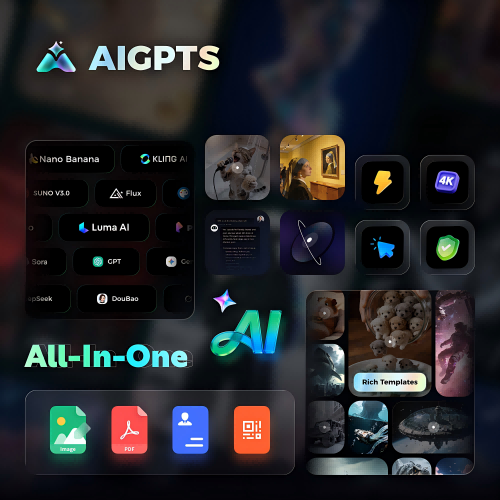
Platforms like AIGPTS also offer document conversion tools alongside AI features, making them useful for comprehensive document workflows.

Why Convert PDF to Word?
PDF files are great for sharing and printing. But they're not easy to edit. Converting PDF to Word lets you:
· Edit text and images without specialized software
· Update outdated information in old documents
· Reuse content from reports, contracts, or forms
· Collaborate with others using Track Changes
· Extract specific sections without copying manually
The challenge? Not all conversion methods preserve formatting equally. Some tools mess up layouts, fonts, or images. This guide shows you 5 reliable methods—ranked by quality, speed, and cost.
Method 1: Free Online Converters (Fastest & Easiest)
**Best for:** Quick conversions, no software installation
**Time:** 1-3 minutes
**Cost:** Free
**Difficulty:** ⭐ Beginner
Online converters are the fastest way to convert PDF to Word. No downloads. No signups (usually). Just upload and download.
Top Free Online Converters
Step-by-Step: Using iLovePDF
· Go to https://www.ilovepdf.com/pdf_to_word
· Click "Select PDF file" or drag and drop your PDF
- **Choose conversion mode:**
· "Convert to Word" (DOCX) for editable text
· "Convert to Word 97-2003" (DOC) for older compatibility
- **Click "Convert to WORD"**
- **Wait for processing** (usually 10-30 seconds)
- **Download your Word file**
Pros & Cons of Online Converters
✅ Pros:
· No software installation
· Works on any device (Windows, Mac, Chromebook, mobile)
· Most are completely free
· Fast processing (under 1 minute typically)
❌ Cons:
· File size limits (usually 10-50 MB)
· Privacy concerns (uploading sensitive documents)
· Formatting may shift on complex layouts
· Requires internet connection
**Tip:** For sensitive documents, use offline methods (Method 2 or 5).
Method 2: Microsoft Word (Best Formatting Retention)
**Best for:** Complex documents, best formatting retention
**Time:** 2-5 minutes
**Cost:** Free (if you have Word) or $6.99/month
**Difficulty:** ⭐ Beginner
Microsoft Word can open PDF files directly and convert them to editable Word documents. This method often preserves formatting better than online tools.
Step-by-Step: Convert PDF to Word in Microsoft Word
· Open Microsoft Word (2013 or later)
· Click File → Open
- **Browse to your PDF file** and select it
- **Click "Open"**
- **Word displays a dialog:** "Word will now convert your PDF to an editable Word document..."
- **Click "OK"**
- **Wait for conversion** (may take 1-2 minutes for large files)
- **Review the converted document** and fix any formatting issues
- **Save as DOCX:** File → Save As → Choose Word Document (*.docx)
What Works Well
· Text formatting (bold, italic, fonts)
· Basic tables
· Images and graphics
· Page breaks
What May Need Fixing
· Complex multi-column layouts
· Headers and footers (may need manual adjustment)
· Text boxes (may become floating)
· Embedded fonts (may substitute)
Pros & Cons
✅ Pros:
· Excellent formatting retention
· No file size limits (within Word's limits)
· Works offline
· No privacy concerns (stays on your computer)
· Built-in if you have Office
❌ Cons:
· Requires Microsoft Word (paid software)
· Conversion can be slow for large files
· May need manual cleanup
· Not available on mobile Word app
Method 3: Google Docs (Best for Collaboration)
**Best for:** Cloud storage, team collaboration, Chromebook users
**Time:** 2-4 minutes
**Cost:** Free
**Difficulty:** ⭐ Beginner
Google Docs can import PDFs and convert them to editable Google Docs format, which you can then export as Word files.
Step-by-Step: Convert PDF to Word via Google Docs
· Go to https://docs.google.com
· Sign in with your Google account
- **Click the folder icon** (Open file picker) → Upload tab
- **Drag and drop your PDF** or click "Browse"
- **Find the uploaded PDF** in your Google Drive
- **Right-click the PDF** → Open with → Google Docs
- **Google Docs converts the PDF** to editable format
- **Review and edit** the document
- **Export as Word:** File → Download → Microsoft Word (.docx)
Pros & Cons
✅ Pros:
· Completely free
· Works on any device with a browser
· Automatic cloud backup
· Easy collaboration and sharing
· No software installation
❌ Cons:
· Formatting retention varies (often worse than Word)
· Requires Google account
· Requires internet connection
· Complex layouts may break
· Images may shift position
**Tip:** Google Docs works best for text-heavy PDFs with simple formatting.
Method 4: Adobe Acrobat Pro (Most Professional)
**Best for:** Business use, batch conversions, best quality
**Time:** 1-3 minutes per file
**Cost:** $19.99/month (Acrobat Pro DC)
**Difficulty:** ⭐⭐ Intermediate
Adobe Acrobat Pro is the gold standard for PDF conversions. It offers the best formatting retention and supports batch processing.
Step-by-Step: Convert PDF to Word in Adobe Acrobat Pro
· Open Adobe Acrobat Pro DC
· Open your PDF file (File → Open)
- **Click "Export PDF"** in the right pane
- **Choose "Microsoft Word"** as export format
- **Select "Word Document"** (DOCX)
- **Click "Export"**
- **Choose save location** and filename
- **Click "Save"**
Advanced Options
Acrobat Pro offers additional settings:
· Retain Flowing Text: For reflowable content
· Retain Page Layout: Preserves exact positioning
· Include Comments: Exports PDF annotations
· OCR Settings: For scanned PDFs (see below)
Pros & Cons
✅ Pros:
· Best-in-class formatting retention
· Batch conversion support
· OCR for scanned PDFs
· Preserves comments and annotations
· Professional-grade quality
❌ Cons:
· Expensive ($19.99/month)
· Overkill for occasional use
· Requires software installation
· Large application size
**Tip:** Adobe offers a 7-day free trial. Use it for one-time bulk conversions.
Method 5: Mac & Windows Built-in Options
**Best for:** No additional software, quick conversions
**Time:** 3-5 minutes
**Cost:** Free
**Difficulty:** ⭐⭐ Intermediate
Both Mac and Windows have built-in ways to convert PDFs without third-party tools.
On Mac: Using Preview + TextEdit
· Open PDF in Preview (double-click the file)
· File → Export as PDF (if needed for compatibility)
- **Open the PDF** in Preview
- **Select all text:** Command + A
- **Copy:** Command + C
- **Open TextEdit** and paste
- **Save as .rtf or .docx**
**Limitation:** This only extracts text, not formatting or images.
On Windows: Using WordPad (Limited)
· Right-click the PDF file
· Open with → WordPad (if available)
- **Copy content** and paste into Word
**Note:** This method is unreliable. Use Method 2 (Microsoft Word) instead.
Better Alternative: Print to PDF + Word
· Open PDF in any viewer
· Print → Microsoft Print to PDF (creates a new PDF)
- **Open the new PDF in Word** (Method 2)
How to Convert Scanned PDF to Word (OCR)
Scanned PDFs are images, not text. You need OCR (Optical Character Recognition) to convert them to editable Word documents.
Option 1: Adobe Acrobat Pro (Best OCR)
· Open PDF in Acrobat Pro
· Click "Scan & OCR" → "Recognize Text"
- Choose "In This File"
- Click "Recognize Text"
- Export to Word (Method 4)
Option 2: Online OCR Tools
Free OCR Converters:
· OCR2Edit: https://www.ocr2edit.com/
· OnlineOCR.net: https://www.onlineocr.net/
· iLovePDF OCR: Available in premium
Steps:
· Upload scanned PDF
· Select output language
- Choose "Word" as output format
- Click "Convert"
- Download DOCX file
Option 3: Microsoft OneNote (Free OCR)
· Insert PDF into OneNote (Insert → Printout)
· Right-click the image → Copy Text from Picture
- **Paste into Word**
**Limitation:** Formatting is lost, text only.
OCR Accuracy Expectations
**Tip:** Always proofread OCR results. Expect to fix typos and formatting.
Tips to Preserve Formatting When Converting
Maximize formatting retention with these tips:
Before Conversion
· Check PDF quality: Higher quality = better conversion
· Identify complex elements: Tables, columns, text boxes may need fixing
- **Note special fonts:** May substitute if not installed on your system
During Conversion
- **Choose the right method:**
· Simple text documents → Online converters
· Complex layouts → Microsoft Word or Adobe Acrobat
· Scanned PDFs → OCR tools first
- **Select correct output format:** DOCX (not DOC) for modern compatibility
After Conversion
- **Review immediately:** Check for missing text or shifted images
- **Fix fonts:** Replace substituted fonts with originals
- **Adjust tables:** May need manual realignment
- **Check headers/footers:** Often need recreation
- **Save a backup:** Keep the original PDF
Common Formatting Issues & Fixes
Comparison Table: PDF to Word Conversion Methods
Quick Recommendation Guide
· One-time, simple PDF: Use iLovePDF or Smallpdf (free)
· Regular conversions: Microsoft Word (best value)
· Business/batch use: Adobe Acrobat Pro (worth the cost)
· Team collaboration: Google Docs (cloud-based)
· Scanned PDFs: Adobe Acrobat Pro with OCR or OnlineOCR.net
FAQ: Convert PDF to Word
Is it free to convert PDF to Word?
Yes, multiple free options exist. Online converters like iLovePDF, Smallpdf, and PDF24 offer free PDF to Word conversion. Microsoft Word can also open PDFs directly if you have Office. Google Docs provides another free alternative.
How do I convert PDF to Word without losing formatting?
Microsoft Word (desktop) and Adobe Acrobat Pro offer the best formatting retention. For online tools, Adobe's free online converter and iLovePDF perform well. Complex layouts may still need manual adjustment regardless of method.
Can I convert PDF to Word on Mac?
Yes. Mac users can:
· Use online converters (iLovePDF, Smallpdf)
· Open PDFs directly in Microsoft Word for Mac
· Use Google Docs in a browser
· Try Preview + TextEdit (text only, no formatting)
How do I convert a scanned PDF to Word?
Scanned PDFs require OCR (Optical Character Recognition). Use Adobe Acrobat Pro's OCR feature, online OCR tools like OnlineOCR.net, or Microsoft OneNote's "Copy Text from Picture" function. Expect to proofread and fix errors.
Is it safe to use online PDF converters?
For non-sensitive documents, reputable online converters are generally safe. However, avoid uploading confidential, legal, or personal documents to online services. For sensitive files, use offline methods like Microsoft Word or Adobe Acrobat.
Why does my converted Word document look different?
PDF and Word use different formatting systems. Complex layouts, custom fonts, and embedded objects may not translate perfectly. Microsoft Word and Adobe Acrobat Pro minimize these issues, but some manual adjustment is often necessary.
Can I convert multiple PDFs to Word at once?
Batch conversion requires paid software. Adobe Acrobat Pro supports batch PDF to Word conversion. Some online tools offer batch conversion in premium tiers. Free methods typically handle one file at a time.
What's the difference between DOC and DOCX?
DOCX is the modern Word format (2007+), offering better compression and compatibility. DOC is the older format (pre-2007). Always choose DOCX unless you need compatibility with very old Word versions.
How large can my PDF be for conversion?
Limits vary by method:
· Online converters: 10-100 MB (varies by tool)
· Microsoft Word: No specific limit (practical limit ~500 MB)
· Adobe Acrobat Pro: No specific limit
· Google Docs: 50 MB for PDF import
Can I convert password-protected PDFs to Word?
You must remove the password first. Most converters cannot process password-protected PDFs. Open the PDF in Adobe Acrobat or another PDF viewer, enter the password, then save an unprotected copy before converting.
Conclusion
Learning **how to convert PDF to Word** opens up multiple editing possibilities. For most users, free online converters like iLovePDF or Smallpdf handle quick conversions perfectly. Need better formatting retention? Microsoft Word's built-in PDF opening feature works excellently.
Quick Recommendations:
For comprehensive document workflows beyond simple conversion, platforms like AIGPTS offer AI-powered tools that complement traditional conversion methods.
**Final tip:** Always keep your original PDF as a backup. Conversion isn't always perfect, and having the source file ensures you can try alternative methods if needed.
Ready to convert? Pick the method that fits your needs and start editing those PDFs in Word.