

 2026-05-28T09:25:10.000Z
Is the PDF so large that it's hard to pinpoint the key information, or is sharing it a hassle? Don't worry—in fact, all these PDF issues can be resolved with a pdf spliter.
How to split a pdf into multiple files? It's simple! This article will introduce 6 of the most popular PDF splitting tools of 2026, along with detailed, step-by-step instructions on how to use them. If you're looking for a quick, free, and online way to split PDF, this article has exactly the answers you've been seeking.
Part 1. Quick Answer: Best Ways to Split PDF Files
Need to split PDF files right now? Here are the fastest options:
For Quick Split PDF Online:
• AIGPTS PDF Editor - Free, instant results, Clean interface, Easy to use, One-stop PDF Solution...
• iLovePDF - Free, no registration, instant results
• Smallpdf - Clean interface, 2 times per day
For Desktop Users:
• Preview (built-in Mac) - Free, no upload required
• Microsoft Edge (Windows) - Built-in PDF viewer with print-to-split
For Business/Professional Use:
• Adobe Acrobat Pro (Professional but not that easy) - Industry standard, advanced features
Part 2. What Does It Mean to Split a PDF?
To split PDF files means to divide a single PDF document into multiple separate PDF files. This process can be done in several ways:
• Split PDF by pages: Extract specific pages (e.g., pages 1-5, 6-10)
• Split PDF into individual pages: Create one PDF file per page
• Split PDF by file size: Break large PDFs into smaller chunks
• Split PDF by bookmarks: Use existing bookmarks as split points
• Split PDF by page range: Extract odd/even pages or custom ranges
Why to Split PDF?
· Extracting specific chapters from a manual or textbook, to quickly find the most important pages from a big PDF file.
· Separating scanned documents into individual files.
· Reducing file size for email attachments, to send and share PDF files easily.
· Sharing only relevant sections with different recipients, to keep information private.
· Preparing documents for printing or binding, to save time and money.
· Organizing large reports into manageable sections.
Part 3. Split PDF Online with AIGPTS PDF Editor - One stop PDF solution
Want to split a PDF file into multiple separate PDF files online? AIGPTS PDF Editor is one of the best choice. AIGPTS is a comprehensive, all-in-one suite of PDF tools featuring a simple interface and powerful functionality. It is incredibly easy to use—even complete beginners can master it quickly.
In addition to splitting of PDF, AIGPTS PDF Editor supports a wide range of other functions, including: edit PDF , merge, compress PDF, add watermarks to PDF, and more. Unlike many other PDF tools, AIGPTS is a true PDF editor, allowing you to directly modify the text, images, and other elements contained within PDF.

Here are 3 simple steps to split PDF with AIGPTS PDF Editor:
Step 1. Upload PDF
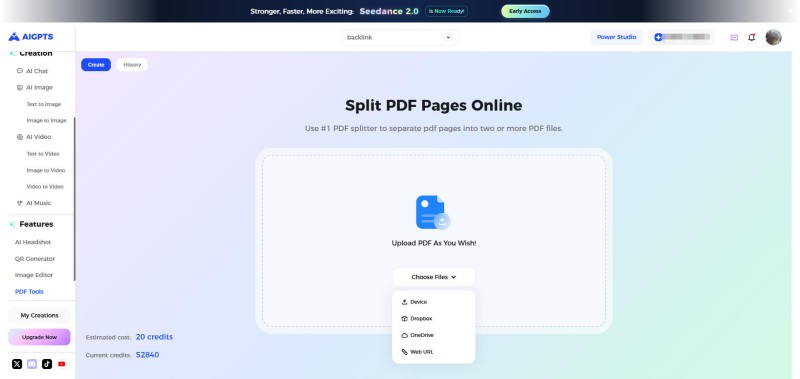
First, access AIGPTS PDF Splitter, then click the "Upload" button on the page to upload the PDF file you wish to split. AIGPTS PDF Splitter supports uploading PDFs from your local device, OneDrive, or Dropbox, as well as uploading directly by entering an online link to the PDF file.
Step 2. Split PDF
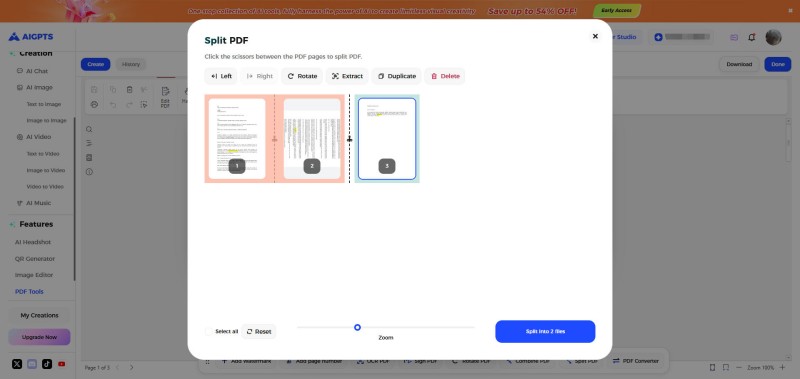
Once the PDF has been successfully uploaded, select the specific pages you wish to split within the "Split PDF" window, then click the small scissors icon to perform a quick split.
AIGPTS PDF Editor also supports copying PDF pages, rearranging the order of pages within a PDF file, rotating PDF pages, and more.
Then, click the "Split" button located in the bottom-right corner of the "Split PDF" window to begin splitting of PDF into multiple separate PDF files.
Step 3. Download splitted PDFs
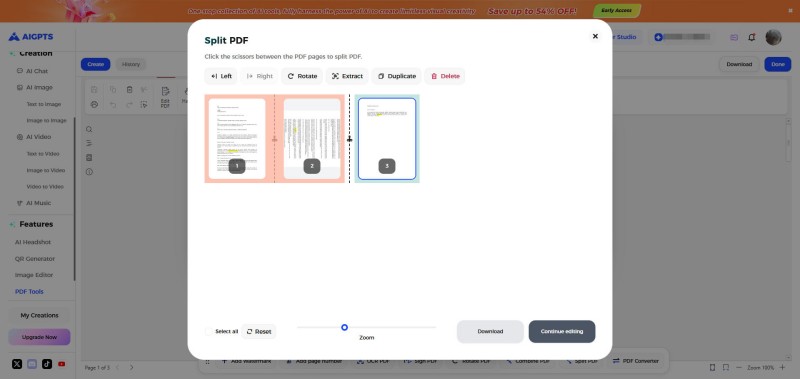
Once the PDF has been successfully split, you can choose to continue editing the PDF or download the split files. You will receive a compressed archive containing all the split PDF files.
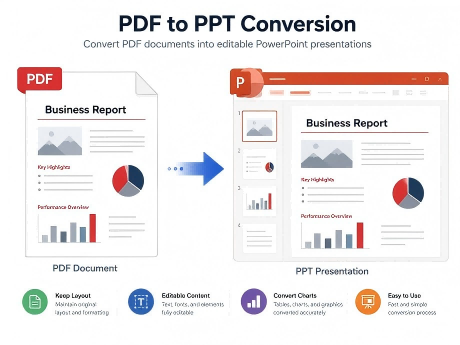
In addition to editing PDFs, AIGPTS also supports PDF conversion. It supports nearly all popular file formats, enabling you to quickly convert PDF files into PowerPoint, Word, Excel, and other formats with just a single click.
Part 4. Split PDF into multiple files with iLovePDF Split PDF
iLovePDF is one of the world's most popular online PDF processing tools. It is entirely browser-based—requiring no software downloads or installations—and features a clean, intuitive interface.
Free users are allotted a certain number of free processing tasks per day, making it ideal for occasional or light-duty PDF splitting needs.
However, if you wish to edit your PDF in addition to splitting PDF, you need to find another secure PDF editor.
Step 1. Open the browser, visit the official iLovePDF website, and click on "Split PDF."
Step 2. Click "Select PDF files," or simply drag and drop the PDF file directly onto the webpage.
Step 3. Split by range: Customize specific pages to extract (e.g., pages 1–5, 6–10).
Step 4. Extract all pages: Split every single page into a separate PDF file.
Step 5. Click the "Split PDF" button located in the bottom right corner.
Step 6. Once the processing is complete, click "Download split PDF."
Part 5. Smallpdf Split PDF, easily split PDF to PDF online
Smallpdf is another visually appealing and comprehensive online PDF tool. It is characterized by its rapid processing speeds and robust cloud security (files are automatically deleted from the server after one hour). Much like the AIGPTS PDF Editor, its split PDF feature offers highly intuitive "page previews."
However, Smallpdf does place limits on the number of PDF you can split, maximum of 2 PDF tasks per day.
Step 1. Visit the official Smallpdf website and select the "Split PDF" tool.
Step 2. Upload PDF file.
Step 3. Once the file has loaded, choose either "Extract pages" or "Split 1 PDF into multiple."
Step 4. In the preview interface, simply check the boxes for the pages you wish to keep, or click the "scissors" icon between pages to designate split points.
Step 5. Once you have verified your selections, click "Split" to download the newly generated files.
Part 6. How to split PDF on Macbook
If you are using an Mac, there is absolutely no need to download any third-party software. The native macOS application, "Preview," is a hidden gem for PDF handling; it allows you to perfectly extract and split PDF using simple drag-and-drop operations.
Step 1. Double-click the PDF file, it will open in "Preview" by default.
Step 2. Click "View" -> "Thumbnails" in the menu bar at the top-left corner to display page previews on the left side.
Step 3. Extracting Single/Multiple Pages: In the thumbnail sidebar on the left, hold down the Command key to select the specific PDF pages you wish to extract individually, then simply drag and drop them directly onto your desktop. These selected pages will automatically be saved as a new PDF file.
Step 4. Deletion Method: Select the thumbnails of the pages you do not want to keep, press the Delete key to remove them, and then click "File" -> "Save" to generate the split PDF.
Part 7. Split PDF on Windows with PDF Viewer
For Windows users, the system's built-in Microsoft Edge browser serves as the fastest tool for both viewing and split PDF. By utilizing the virtual printer feature, you can easily and precisely "print" out the specific PDF pages you need without installing any additional software.
Step 1. Right-click the PDF file and select "Open with" -> "Microsoft Edge."
Step 2. Click the "Print" icon located in the top-right corner (or press the keyboard shortcut Ctrl + P).
Step 3. In the "Printer" drop-down menu, be sure to select either "Save as PDF" or "Microsoft Print to PDF."
Step 4. Under the "Pages" option, select "Custom range" and enter the specific page numbers you wish to extract (e.g., 1-3, 5, 10).
Step 5. Click "Save" at the bottom of the window, then simply choose a destination folder to save your file.
Part 8. Split PDF Using Adobe Acrobat
Adobe Acrobat Pro is the official, flagship software from Adobe—the very inventor of the PDF format—and stands as a professional tool that sets the industry standard.
Exceptionally powerful, it supports advanced automated operations such as batch splitting and splitting by top-level bookmarks, making it ideal for enterprise users and professionals who need to process large volumes of extensive documents.
Step 1. Open the PDF file you wish to split using Adobe Acrobat Pro.
Step 2. Click "Organize Pages" on the toolbar located on the right side or at the top of the interface.
Step 3. In the secondary menu that appears at the top, locate and click "Split."
Step 4. In the control bar that pops up, configure the splitting criteria: you can choose to split by "Number of Pages" (e.g., splitting into separate files every 10 pages), "File Size," or "Top-Level Bookmarks."
Step 5. Click "Output Options" to configure the filename suffix for the split files and specify their save location.
Step 6. Finally, click the "Split" button; the software will then display a notification confirming, "The document has been successfully split into X files."
Pricing: Acrobat Pro DC $19.99/month, Acrobat Standard DC $12.99/month, 7-day free trial available
Part 9. Best PDF Splitter Comparison
| Tools | Plateform | Pros | Cons |
|---|---|---|---|
| AIGPTS PDF Editor | Online | 1. Intuitive interface, easy to use 2. Highly efficient 3. Comprehensive editing features an all-in-one PDF solution 4. Free to use 5. Secure, privacy comes first | 7-day free trial |
| iLovePDF | Online | 1. No installation required 2. Intuitive interface 3. Ideal for occasional use | File size and usage limits |
| Smallpdf | Online | 1. Excellent visual splitting experience 2. Highly secure | Limited free allowance |
| Preview | macOS | 1. Built into the system 2. Completely free 3. Drag-and-drop functionality | Mac users only, basic functionality |
| PDF Viewer | Windows | No installation needed simply use the "Print" function | Single-purpose functionality |
| Adobe Acrobat Pro | Desktop | 1. Official and authentic 2. Most powerful feature set 3. Supports batch processing | 1. Large software size 2. Expensive subscription pricing |
Part 10. FAQ: Split PDF Questions Answered
Question 1. How do I split a PDF into individual pages?
Use online tools like AIGPTS PDF Editor, drag pages from Preview on Mac, or use 'pdftk input.pdf burst' command.
Question 2. Is it safe to split PDF online?
For non-sensitive documents, yes. Avoid uploading confidential files. Check privacy policies. Use offline tools for sensitive files. But with AIGPTS, you do not have to worry about the privacy.
AIGPTS PDF Editor employs enterprise-grade encryption, once you finished split PDF, the files are deleted from the database immediately.
Question 3. Can I split a PDF without losing quality?
Yes! Use tools that don't recompress: AIGPTS, PDFtk, QPDF, Preview. Avoid online converters that optimize for web.
Question 4. How do I split a large PDF file (100MB+)?
Use desktop software (no upload limits), AIGPTS online, or command-line tools like QPDF and Ghostscript.
Question 5. Can I split a password-protected PDF?
Only if you have the password. Adobe Acrobat handles encrypted PDFs. Some online tools reject them entirely.
Question 6. What's the best way to split PDF on Mac?
Preview is best - free, built-in, no upload required, simple drag-and-drop interface.
Question 7. How do I split PDF files in bulk?
Use PDFtk Server (command-line), Adobe Acrobat Pro (batch actions), or Python scripts with pypdf.
Question 8. Is there a completely free PDF splitter with no limits?
Yes! PDF24 Tools offers completely free online splitting with no file size or daily limits.
Question 9. Can I split PDF by bookmarks automatically?
Adobe Acrobat Pro can split by top-level bookmarks. Custom Python scripts can also parse bookmarks.
Question 10. How do I split a scanned PDF?
Scanned PDFs split like regular PDFs. Quality won't change. Consider OCR before splitting if you need searchable text.
Conclusion
Learning how to split PDF files opens up numerous possibilities for document management, sharing, and organization. Remember to consider file sensitivity when choosing between online and offline tools.
The easiest and best way is to split PDF with AIGPTS PDF Editor, not only is it safe and simple, but it also offers a diverse range of PDF editing features, providing a one-stop solution for all your PDF-related issues.